
Automated search and Report
To use the Quartet Auto Search, please contact us to have it enabled.
Quartet Auto Search is an AI search and mapping tool which helps run an initial search on an idea and provide analysis in the form of an automatically generated report of the top five publications.
Auto Search is accessed from the front page of Quartet, from either the top purple box
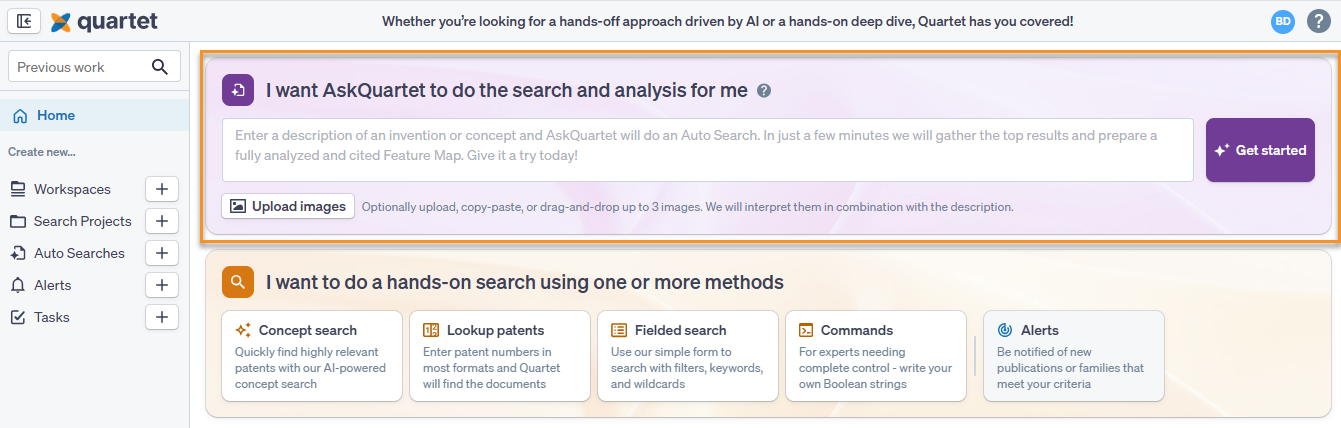
or from
Getting Started and Input Tips
Starting Auto Search is easy, simply enter a disclosure into the box and hit "
Once "
Feature list
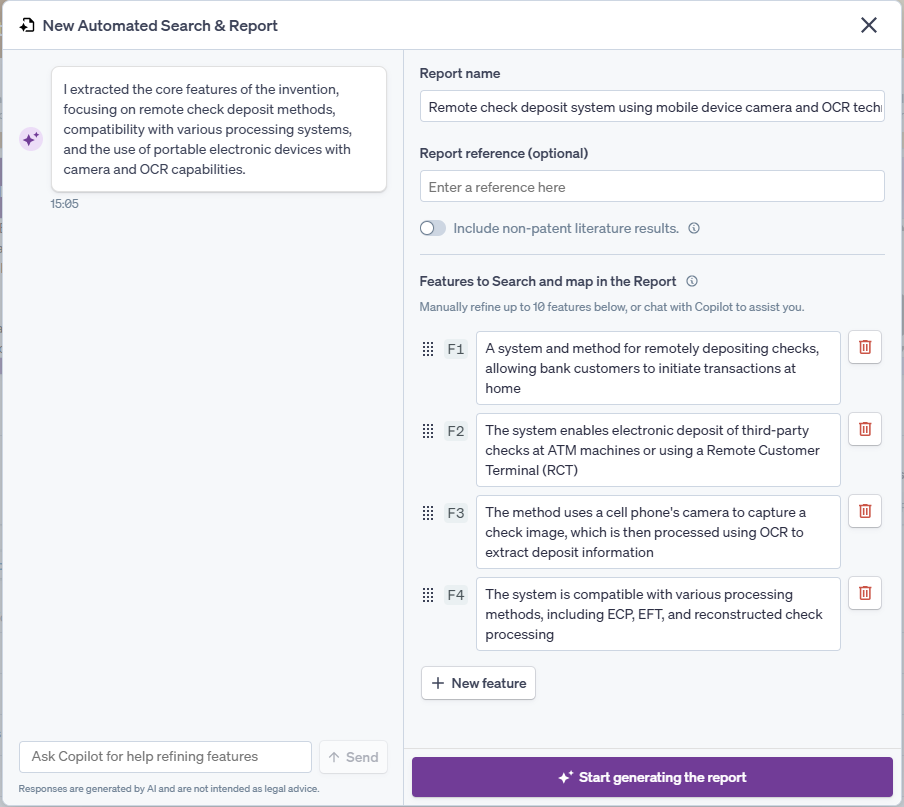
From this screen, the features can be manually edited by clicking in the box and typing, with a button at the bottom allowing for creation of additional features. Please note the maximum number of allowed features is ten; the system will normally attempt to create roughly four subject features, though this number will vary based on the disclosure. When adding in or editing features, it helps to have terminology and words consistent across features, as well as having features being interlinked. For instance, the features above discuss the use of a camera taking a picture of a check, then running OCR on the image of the check. Note in feature 3, it explicitly links taking a photo of the check and running OCR on that check image. That is superior to having two separate features such as
1. Using a cell phone's camera to capture a check image
2. Using OCR to extract deposit information
As those two features are not linked by the check image.
Ask Quartet can also be used to ask it to add, remove, or edit the features, or if you have other questions about the search such as relevant class codes.
A toggle at the top will turn on or off Non-Patent Literature (NPL) searching for the disclosure. Please note that the NPL search sends data outside of Quartet, which is why it is turned off by default.
Note that Auto Search WILL search based on your entire disclosure, and the features are used to set a relevance order.
Results Overview
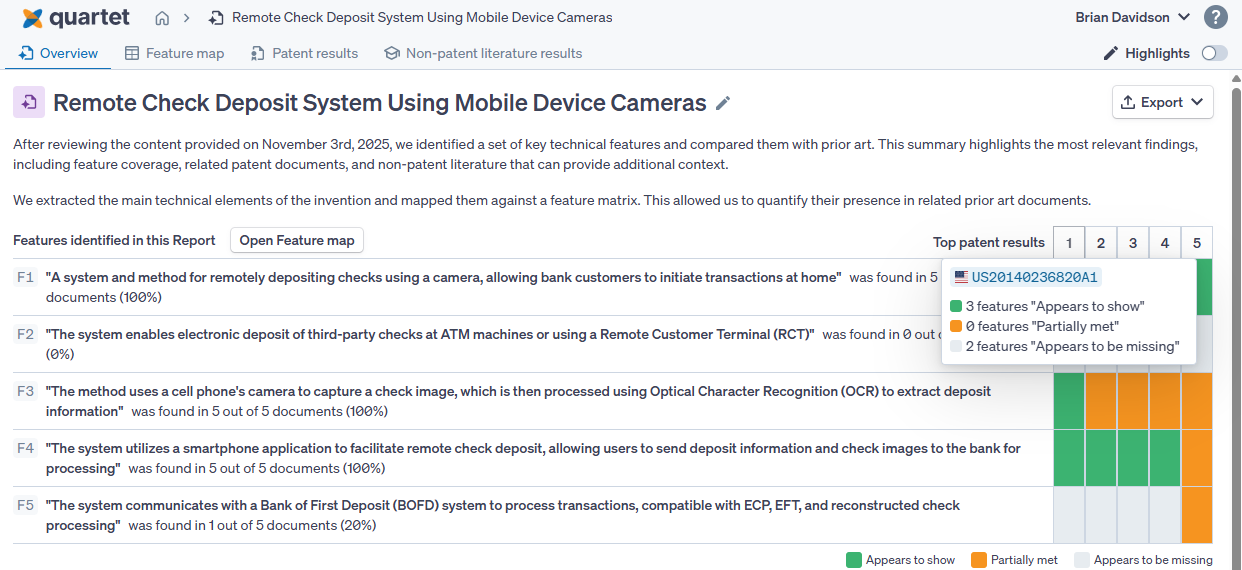
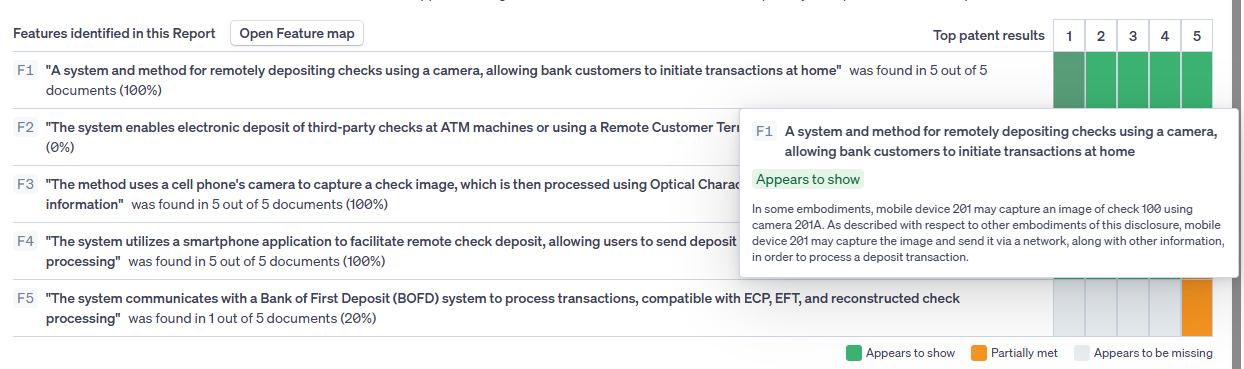
From the landing page the rest of the report can be accessed, either from the buttons within the page information, or from the banner at the top.
Feature Map
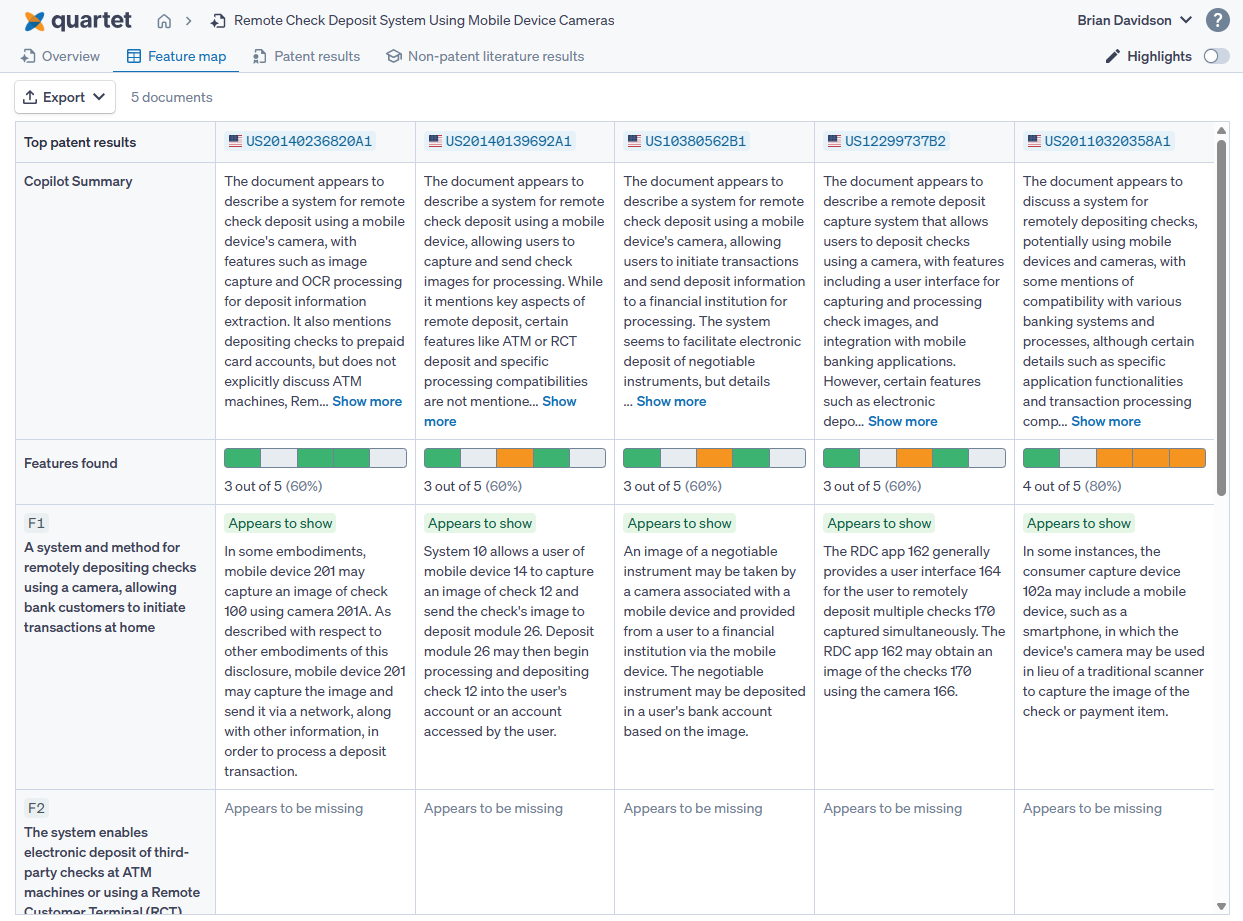
Feature map is a larger version of the chart in the overview. Shown here are the top 5 publications laid out across the top, with a summary for each document, below that is a chart showing the breakdown of which features seem to be met, partially met, or missing.
Below the chart breakdown are the individual features, with citations chosen by Auto Search from the selected publications which appear to match the subject features.
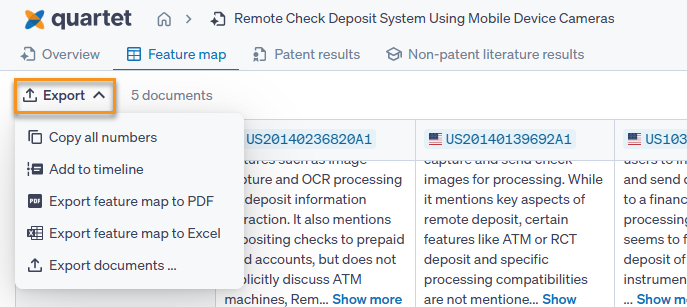
This feature map may be exported using the button at the top left, and choices for export are to copy all numbers, add to timeline, exporting the map to either pdf or excel, or exporting information for just the top 5 publications.
Patent Results
Clicking the patent number at the top will take you to that document within patent results, which is the next tab.
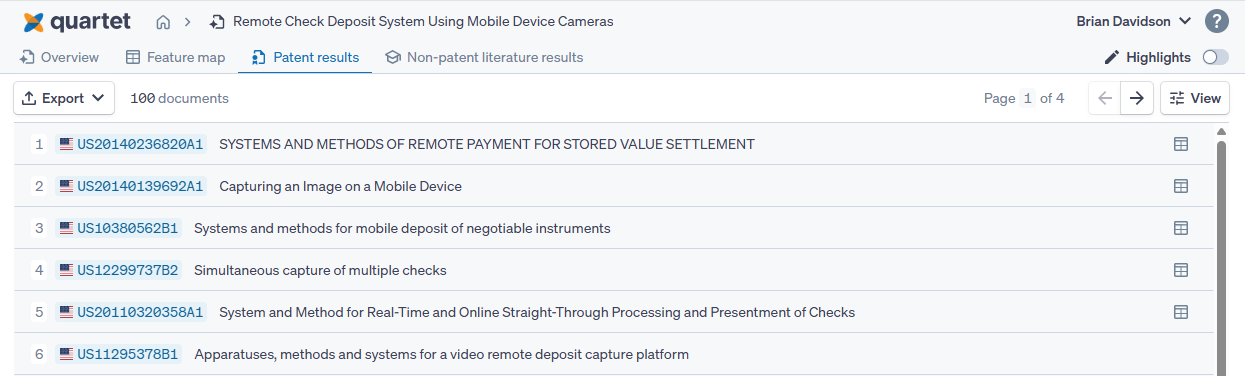
The patent results tab is a full list of the 100 results returned by the Auto Search, in order of relevance, with the top 5 publications from the Feature map in order as results 1-5, denoted with the map icon 
This results tab functions similarly to the results list within Quartet, with the main change being the addition of AI underlined sections, which match the searches subject features. These can be seen on the highlight hitmap on the right, using this we can see sections which the AI has marked as important, and hovering over that section will show a popup relating that section to the subject features.
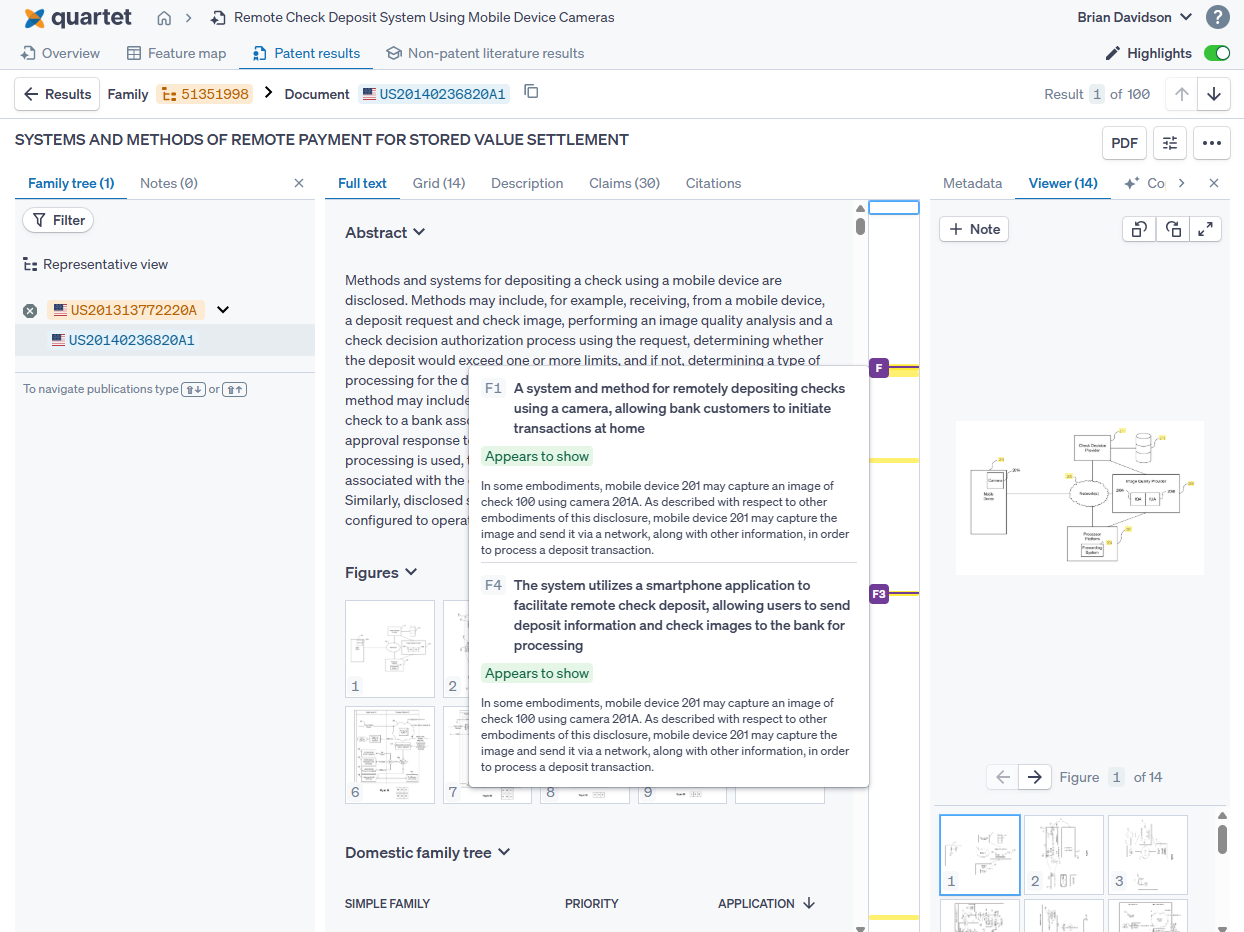
The highlights module is accessible within this review mode, and functions the same as it does within the normal results and detailed view, with the additional functionality of working within the Overview and Feature map tabs.
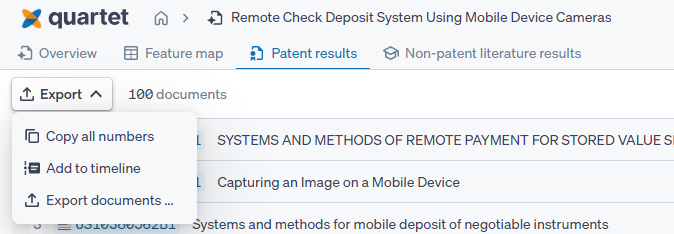
Additionally from the patent results tab, the 100 results shown can be exported with three methods; copy numbers will copy all numbers to the clipboard, separated by a comma, add to timeline will add the 100 numbers to the timeline of a specified project, and export documents will bring up the Quartet export dialog, allowing us to choose the patent data exported.
Non-patent literature results
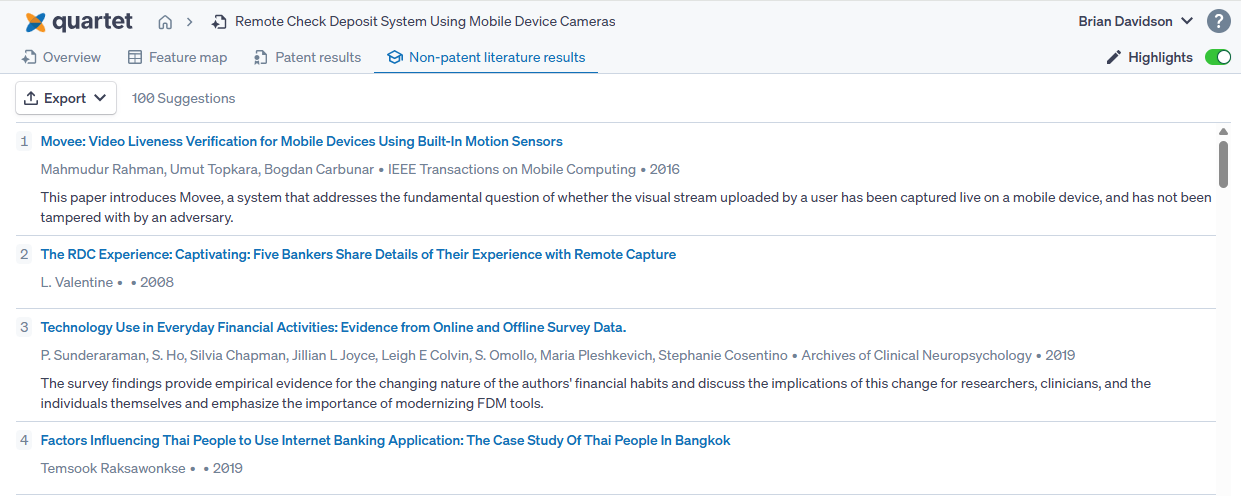
The non-patent literature tab shows the top 100 NPL results that Auto Search has found. Clicking on one of these will take us to an external link to review the article. This list can be exported to a PDF, which will include all the information shown on this tab, with links embedded in the PDF.