
Navigating the Home Page
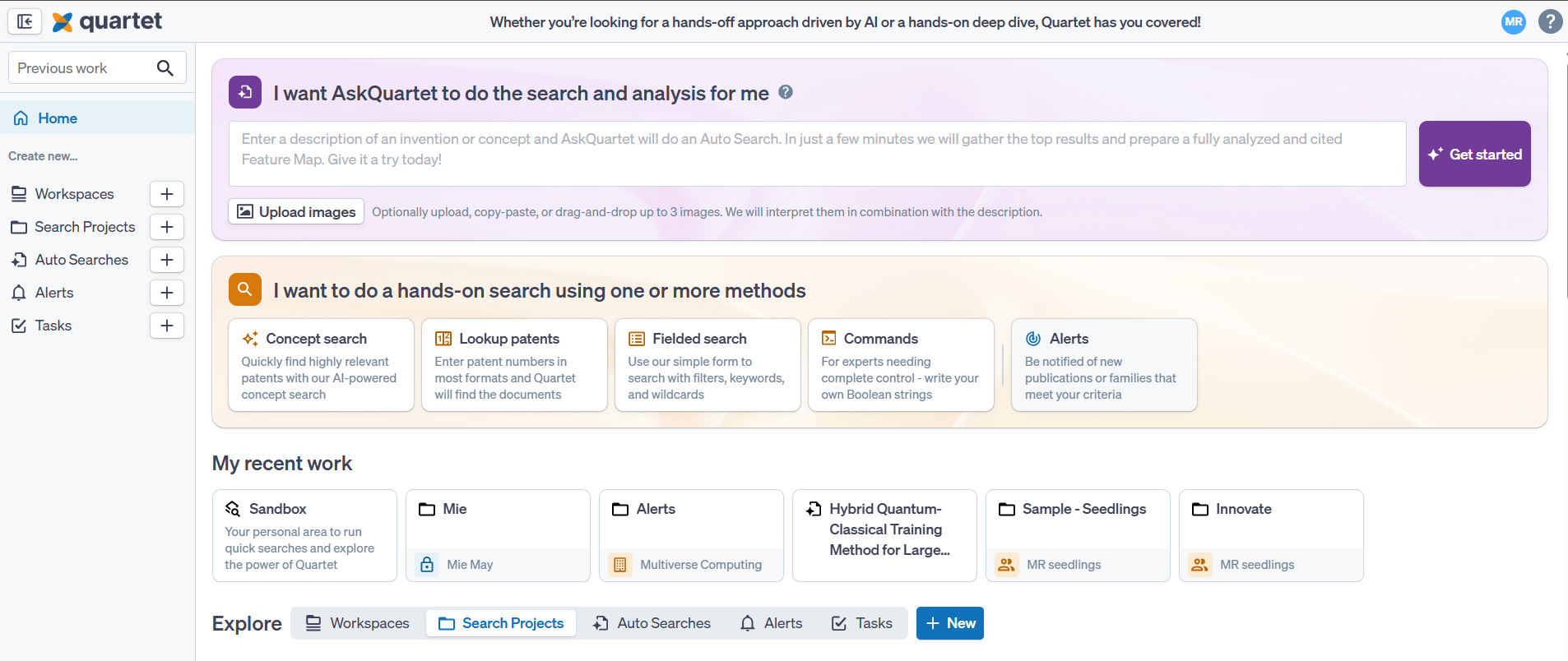
The Home page is the central hub of Quartet, allowing quick access to your Workspaces, Projects, and Auto Searches, as well as providing a quick launch point to create new Workspaces, Projects, and Auto Searches. Additionally, the Home Page is the initial landing zone for Quartet, allowing you to get used to the Navigation Toolbar on the left.
To begin searching, it is necessary to either create a new Search Project, select an existing one, or to utilize the Auto Search. To continue, use any of the options below:
- Create a new project: Search projects are self contained search efforts, including a Timeline/search history, highlights, notes and more. For more information on search projects, see this article. For a new project, click either the New button to the right of the explore banner, or the + button from the left sidebar next to projects. Enter text into at least one of the Reference field or the Project name fields (text entry into Project description field is optional)
- Create a new workspace: Workspaces are a collection of related Search Projects, for more information on Workspaces, visit this article. For a new workspace, click either the New button to the right of the explore banner, or the + button from the navigation bar on the left. Enter text into the Name field (text entry into Description field is optional) and set permissions
- Generate an Auto Search: Quartet Auto Search is an AI search and mapping tool which helps run an initial search on an idea and provide analysis in the form of an automatically generated report of the top five publications. Paste a description and let Auto Search extract key features and map relevant publications. For detailed use on the Auto Search, see this article
- Select existing project: the explore view can be toggled between workspaces, projects, Auto Searches, Alerts and Tasks, where e.g. selecting a workspace will take you to a workspace overview page, see here for more information on workspaces
- Search method buttons: Select one of the four methods near the top to add to an existing search or to create a new search
- My recent work: Displays in addition to the Sandbox, the five most recently opened Projects or Auto Searches, select one of these to re-open
- Previous work search bar: The previous work search bar is located in the top left hand corner, within the navigations pane; this bar will search for all work available, and is an easy navigation point to the relevant e.g. Search Project, Alert or Auto Search. This search bar is not used for searching for patents or publications
Search Method Buttons
Near the top of the home page are buttons for each of the search methods in Quartet:
These are the same methods available inside a project.
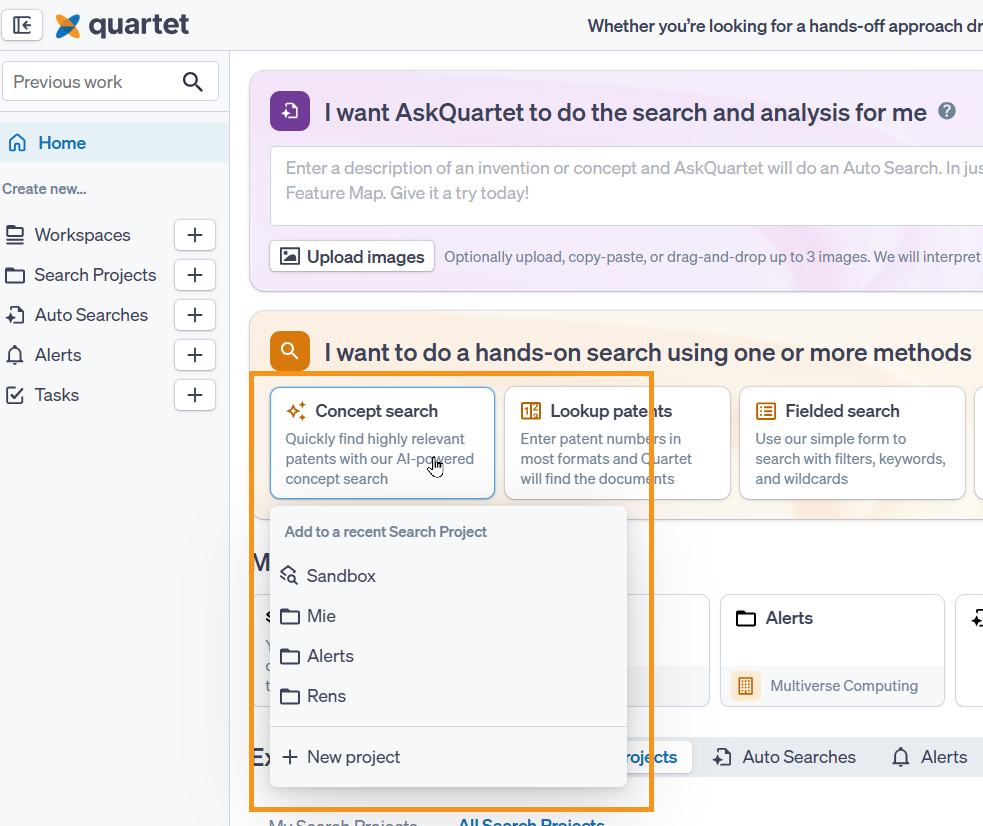
When clicking a search method button, a drop down menu will give options to add the search to the Sandbox, a listed recent project, or to create a new project.
Sandbox
The Sandbox is a default project pinned to the front of the list of "My recent work". It is a quick search environment to run some strings without having to create a separate project.