Highlights
Highlight Box
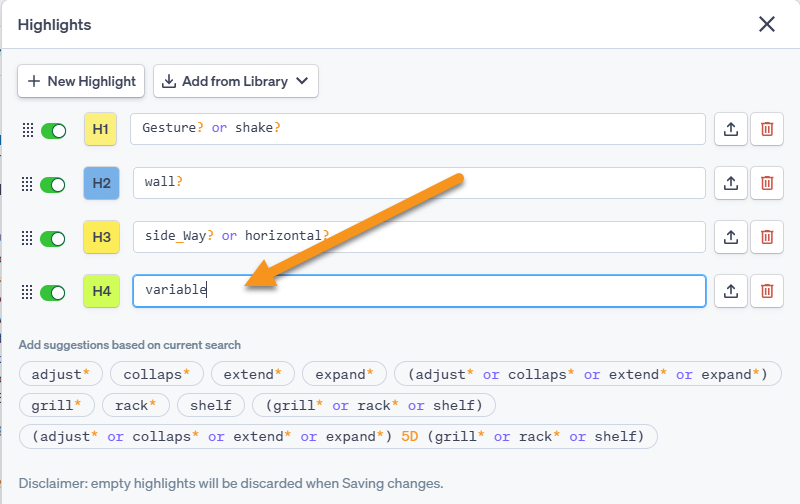
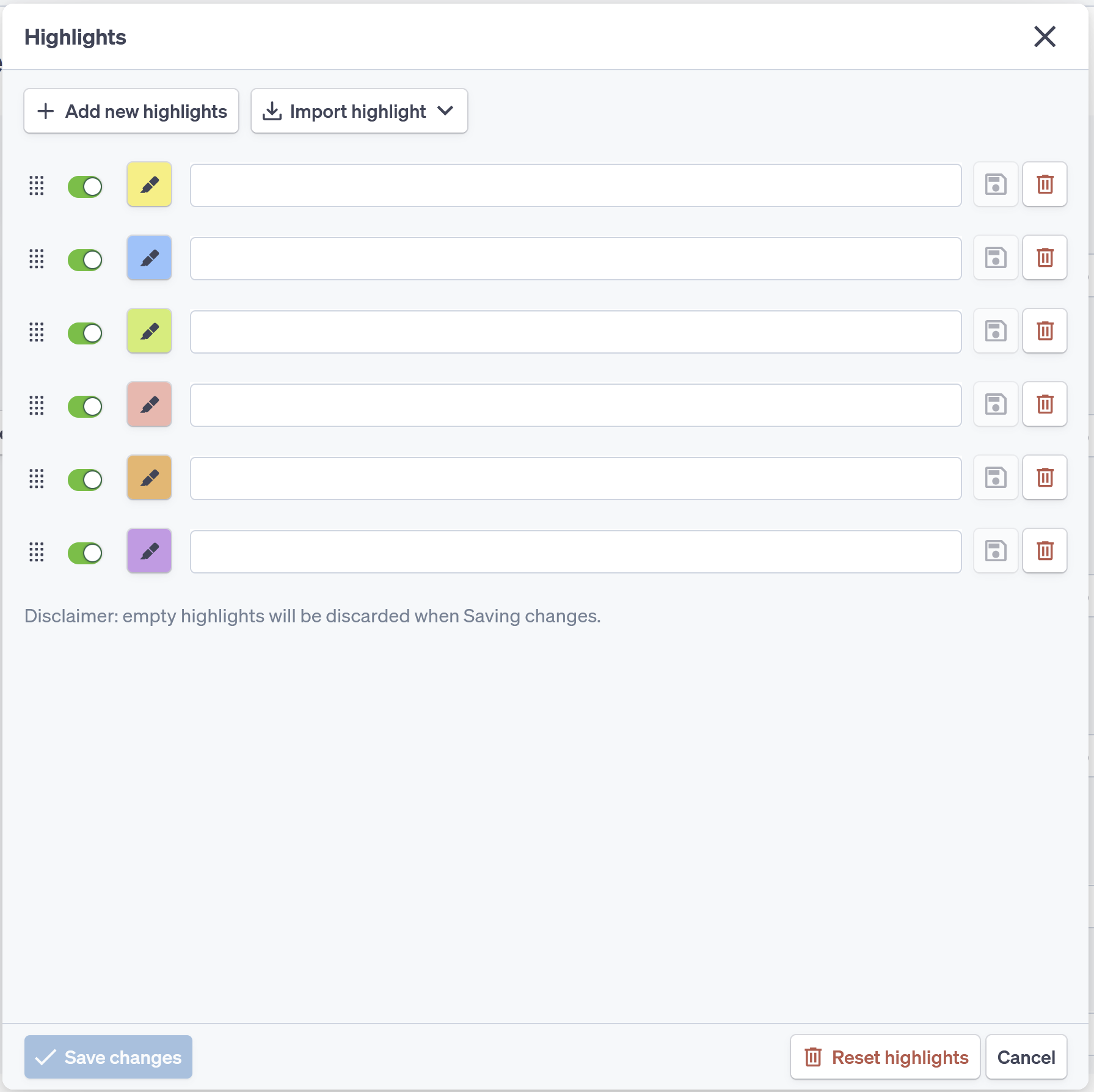
Clicking “Highlights” in either Results view or Detail view will bring up the “Highlights” popup box. The highlights popup box accepts keywords or phrases and highlights those entries in the associated color to the left of the entry box. For additional highlights, click the 
The highlighting system stores 12 default, high-contrast colors the choose from. Additionally, the colors for each search line are fully customizable for different or specific colors. To customize the color:
click on the color square in the “Highlight” window
click “Pick a custom color,” and
select a new color using either the color palette and slider or entering a specific Hex color code.
The order of the highlight colors in the “Highlights” window can be reordered by grabbing and dragging the dot matrix for each highlights line.
Highlights at the top will have priority; highlights will take the color of a “higher up” color if the same term repeats in two different lines.
Minimap
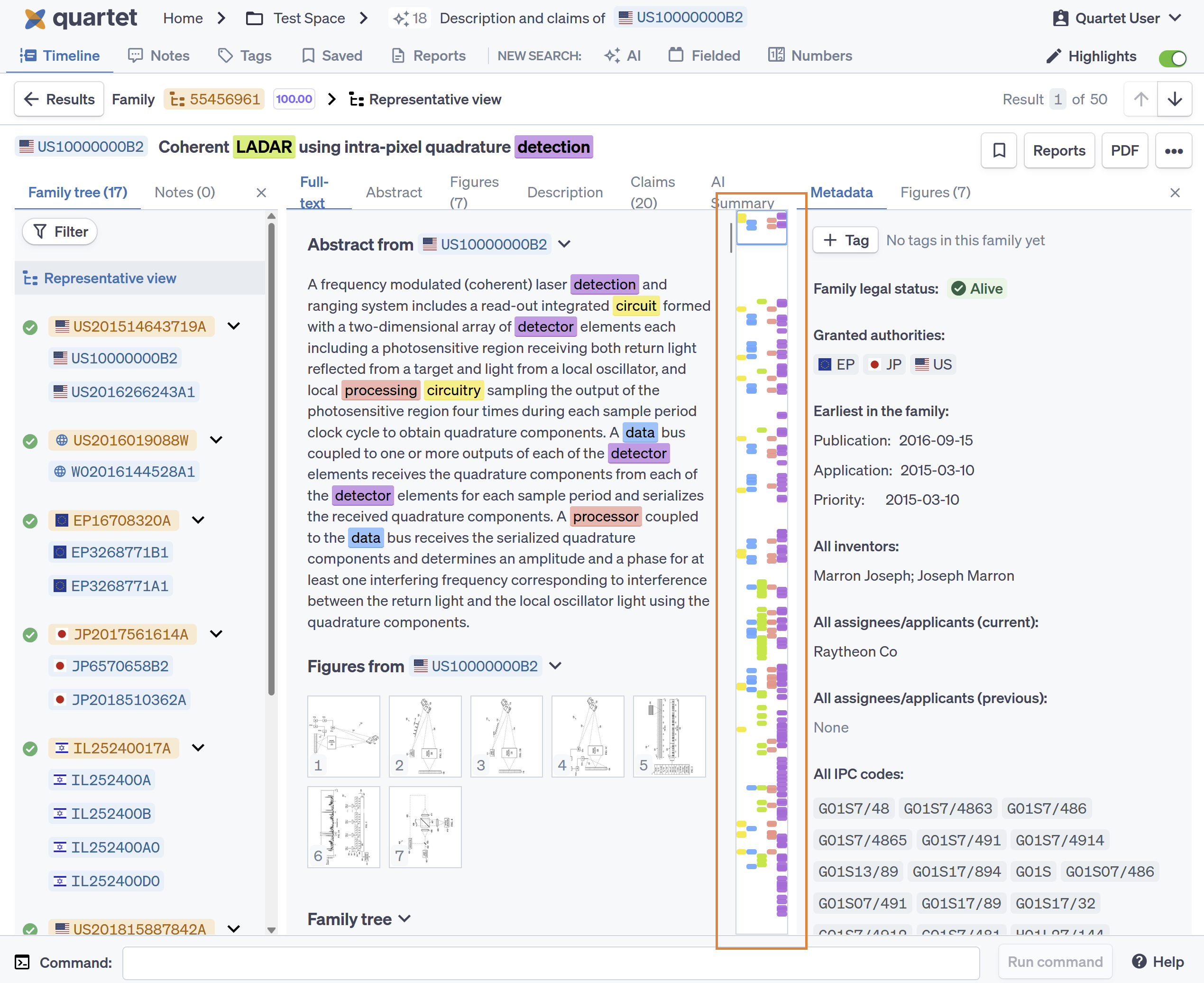
In Detail view, a highlight Minimap is placed between the center pane and right pane. The Minimap shows where and how frequently within the document highlights are present. Using the Minimap, each highlighted area of the document is shown, allowing quick navigation to sections of interest.
Adding highlights from the detail view
Highlights may also be added from the detailed or representative view. Use the cursor to drag and select the term to be added to the systems highlights and a dialog box will pop up.
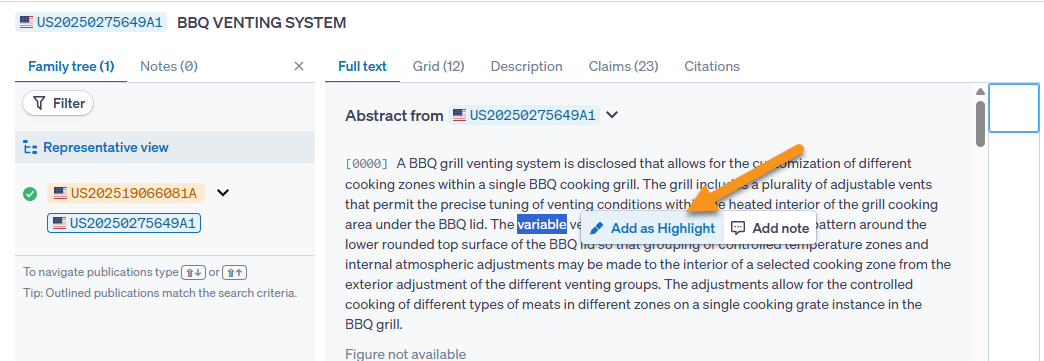
From this dialog box, the option of "Add as Highlight" will open the highlight dialog box and the selected text be added as a new highlight color under existing highlights.