
Notes
Quartet has the ability for notes to be added to publications during the searching process. The notes can be tied to a publication as a whole or tied to specific portions of a publication. This feature can be helpful as the comments and notes serve as reminders during a revisit to any particular publications later on.
Notes are per publication and not per family, meaning that the notes are tied to a selected publication within a family, and different notes can be tied to different publications within the same family.
Notes are also associated with a project. Notes saved for a publication in one search string will also be viewable when that publication is retrieved in another search string, but notes for the same publication will not cross from one project into another.
Notes are not viewable when publications are shared using a public link, however notes may be exported in a spreadsheet format. The export will be a list which includes the publication number, notes associated, author, and the date the note was added/edited.
Interface
Notes can be added in Results view and Detail view when reviewing references. See those sections on this page for more details on adding notes.
Any saved notes can be viewed in the "Notes" tab in the top left of the interface between the "Timeline" and "Saved" tabs.
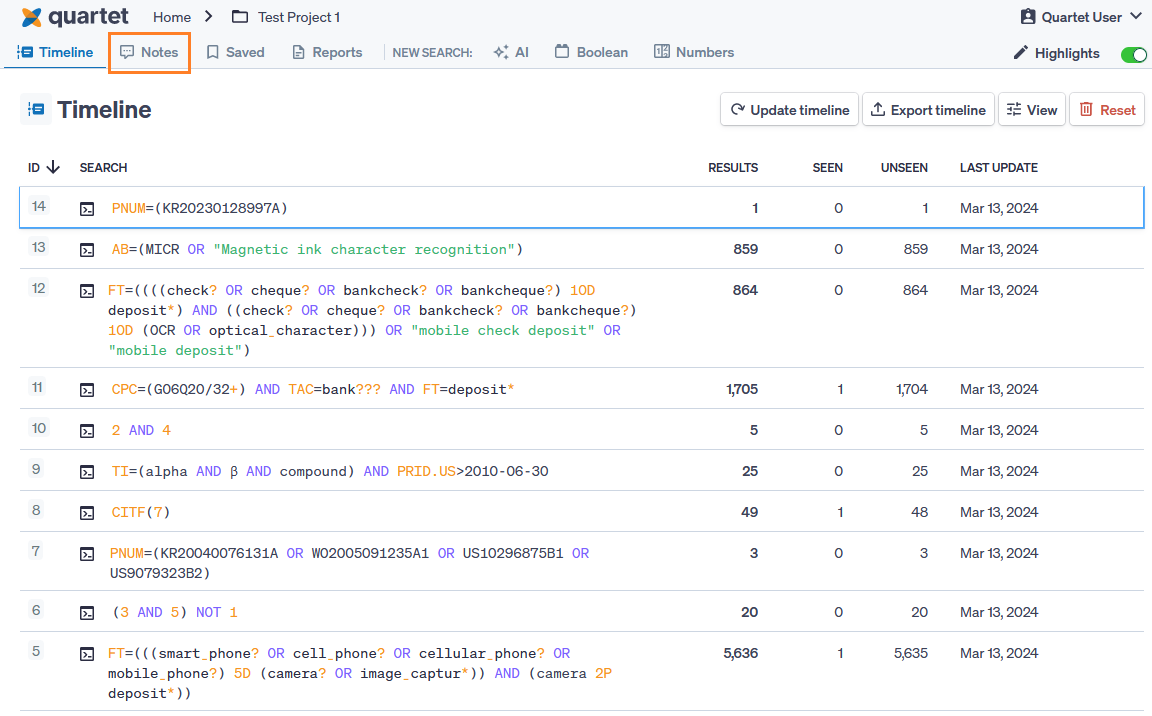
Inside the "Notes" tab is all saved notes for a project. From this tab, notes can be reviewed, and in the top right, either searched using the text box, or exported.

Next to those is the view button, this button can be used to toggle between only viewing notes for this project, or viewing all notes within the greater workspace.
Hovering over each note will bring up a three-dot action button wherein the note can be edited or deleted.
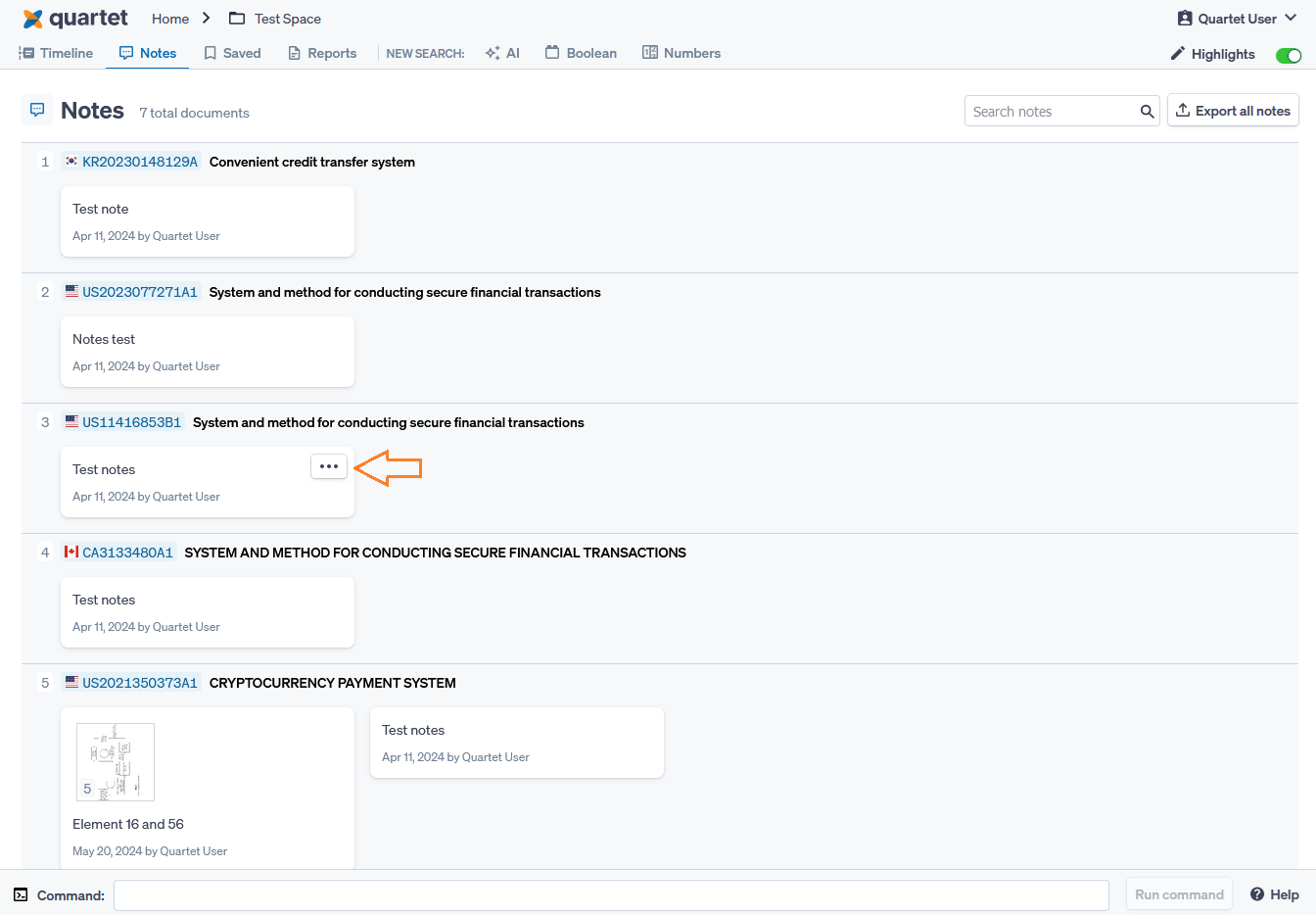
Clicking the publication number for each note will pull up the publication view for that document.
Clicking on a note anywhere will navigate to the section of the document (text, figure, etc.) associated with said note.
Notes in Results View
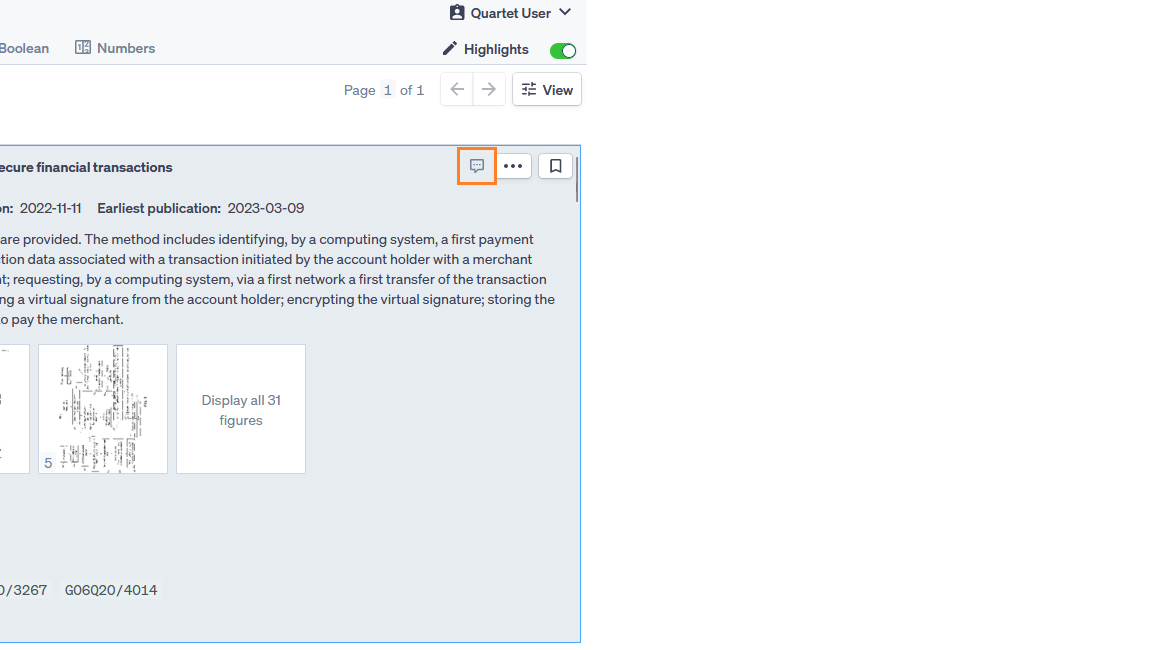
Notes can be added in results view. The three-dot actions menu allows notes to be added to the selected publication.
Since Results view shows a representative member of a patent family and notes are associated with individual documents, any notes that are added from Results view will be associated with the representative family member.
Families wherein at least one family member has associated notes will have a notes icon next to the save flag and three-dot action button.
Notes in Detail View
In the left pane under the Family tree tab, any documents having notes will be shown with the same icon  as in Results view.
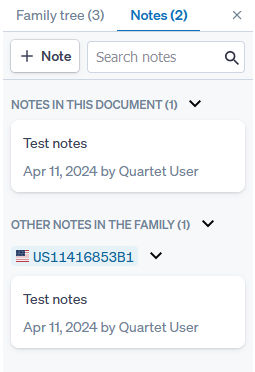
In addition to the Family tree, the left pane also has a Notes tab. The Notes tab shows all notes associated with the publications of that family. In this Notes tab notes may be added, edited, and deleted; similar to the actions available in the Notes page.
Like in the Notes page, the notes in the left pane Notes tab are also searchable with the search box, and also like in the Notes page, Boolean operators do not work in this search box.
When showing a representative family member, all notes in the family will be shown in the family tree. When a specific publication is selected, notes for that publication will be shown first, however notes for other family members will also be shown after.
Notes in Figures
Notes can also be appended to each individual figure of a publication, in addition to the previously described method of added a text note associated to the publication as a whole. This action can be done in both Detail view and Figure Popup.
Adding Notes to Figures
In Detail view, the right pane has a "+ Note" button. Clicking this button brings up an "Add note" box which will attach the note to the currently selected figure.
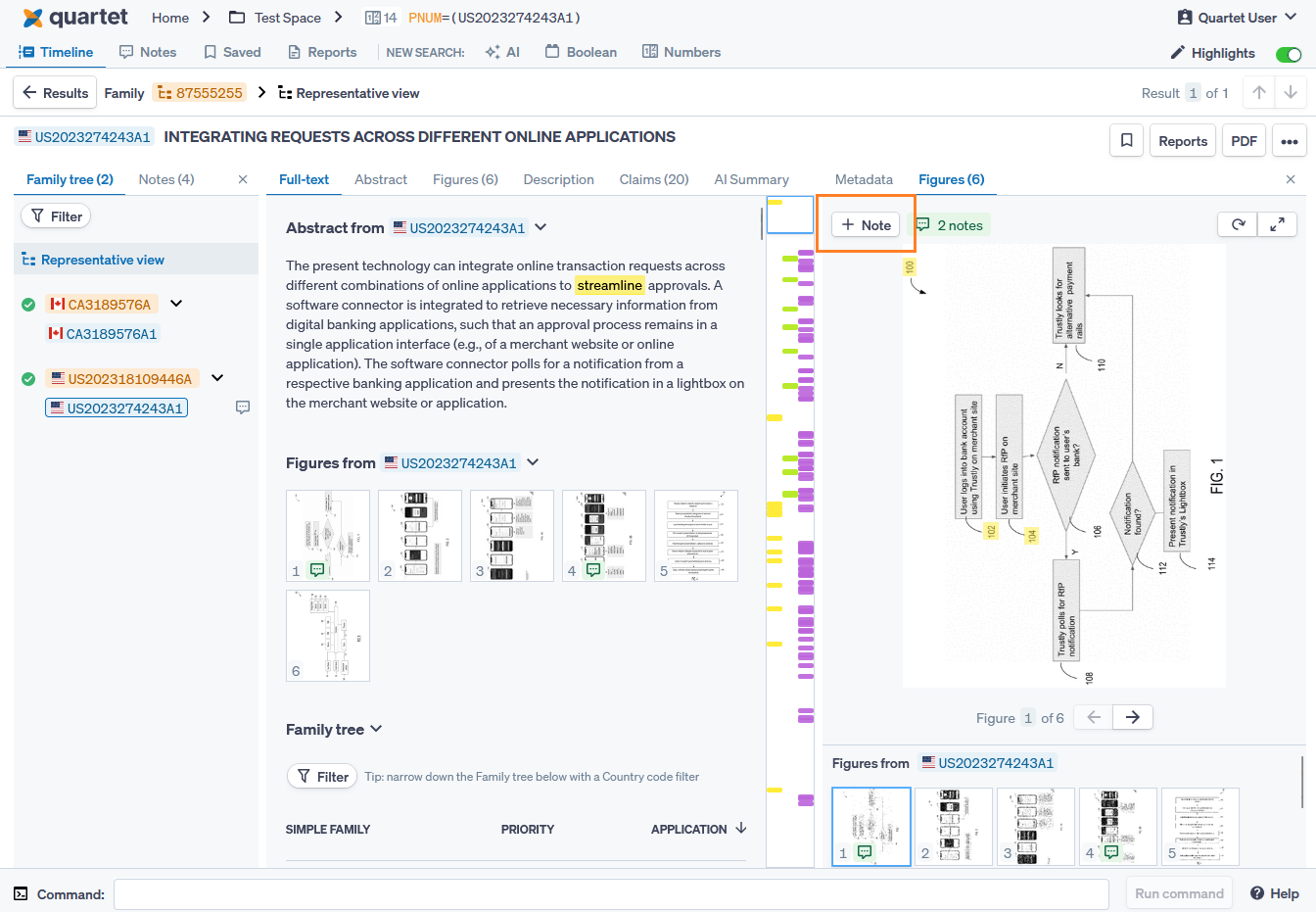
In Figure Popup, the same "+ Note" button is located in the upper center-left of the popup window.
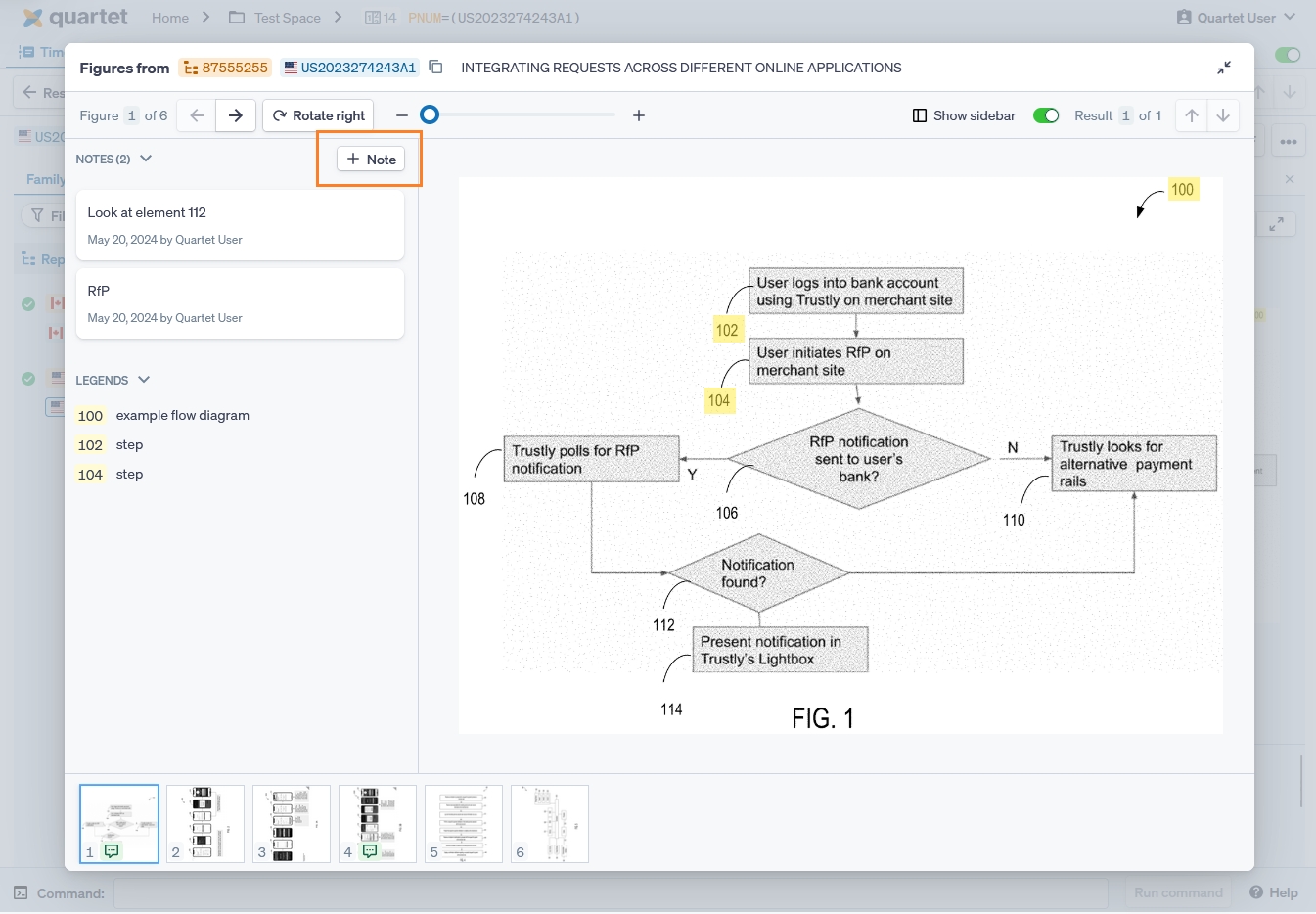
Viewing Notes of Figures
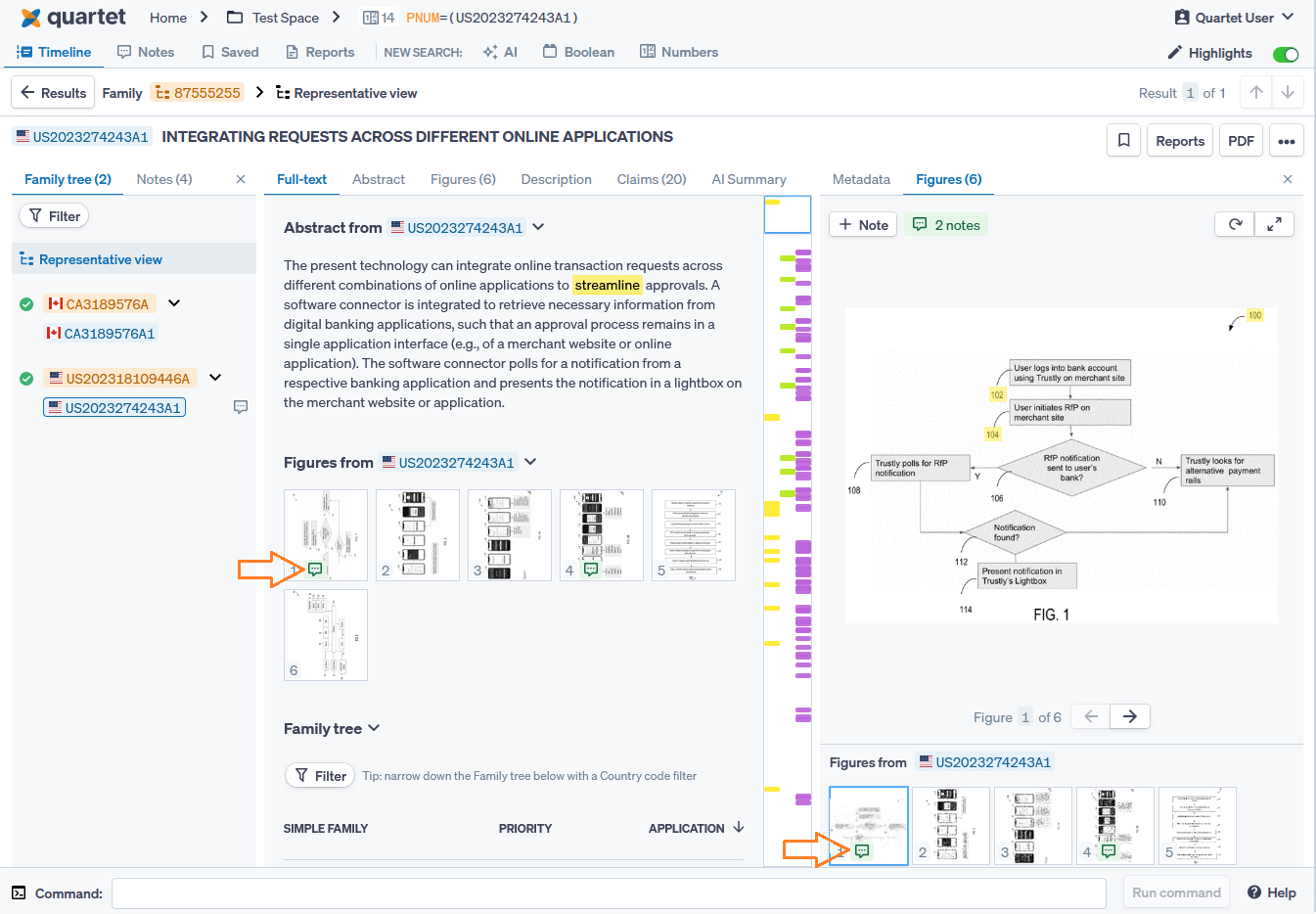
Any figures with notes will be marked with a green note bubble in its thumbnail. This applies to the thumbnails in the center pane, at the bottom of the right pane, and at the bottom of the Figure Popup.
The number of notes associated with the currently selected figure is shown next to the "+ Note" button in the upper left of the right pane. Clicking on this will bring up the Figure Popup where the contents of the notes can be viewed.
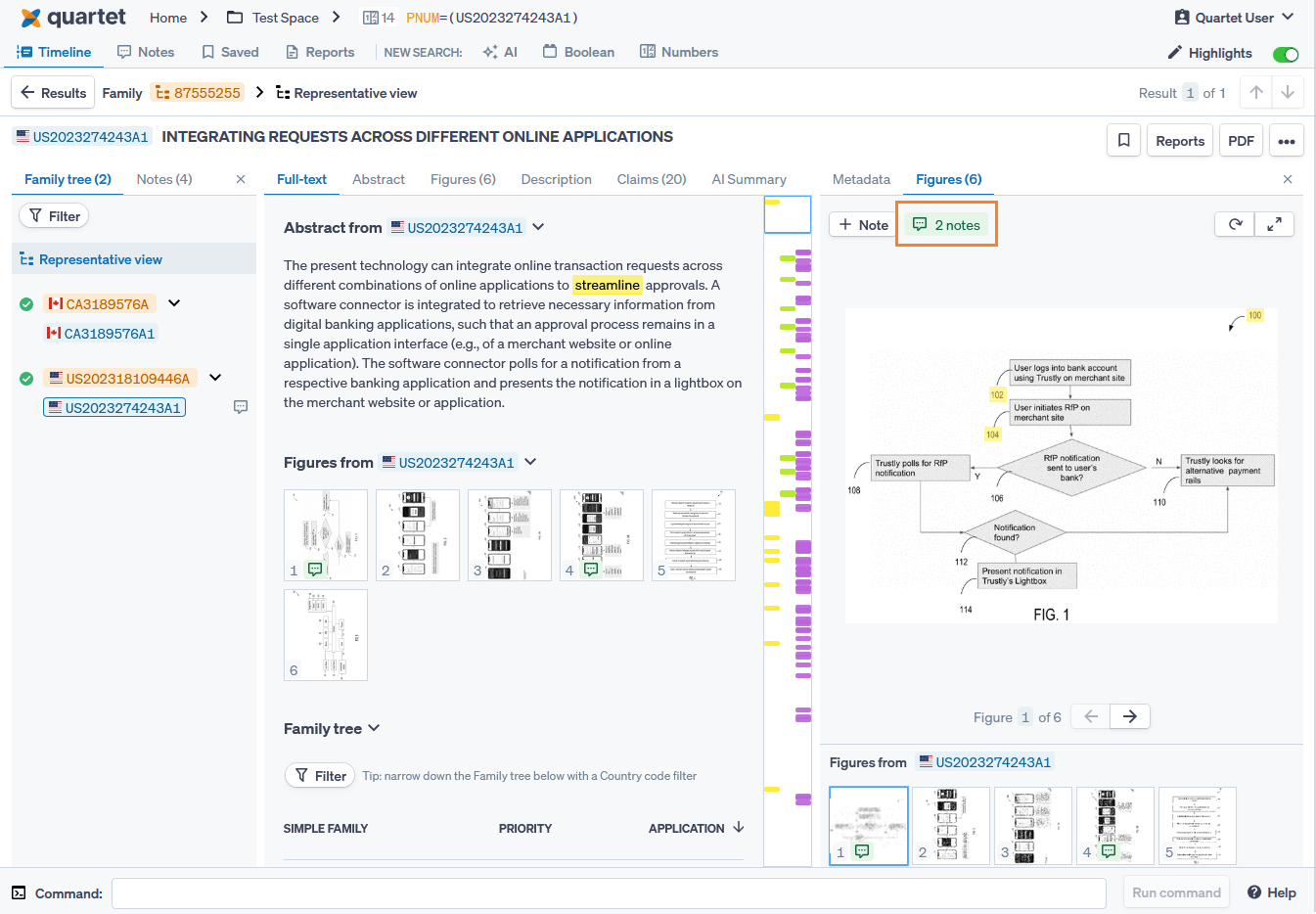
Figure notes are found in the same places as text notes:
- The Notes page will show figures notes of the entire project.
- The Notes tab in the left pane will show a thumbnail of any figure with notes attached and the note(s) for that figure.
Additionally, clicking on any of the figure notes will bring up the Figure Popup where figures and notes can be viewed in more detail. Similarly, clicking on the thumbnails of any of the figures in both the left and right panes to bring up the Figure Popup.