
Concept Search
The Concept Search uses cutting-edge natural language processing models to match text input to documents that may be relevant to the entered text. Natural language processing through machine learning looks at sentences, phrases, paragraphs and attributes meaning and context to the passages of text. It will look for other documents with the same meaning and context even if they use different terminology.
The AI model is trained on patent publications, no searches run in the system is used to train the model.
To Access the Concept search either select the option in the top left hand side of the Home screen, where it is possible to enter the latest accessed Search Projects or create a new Search Project to run the search.
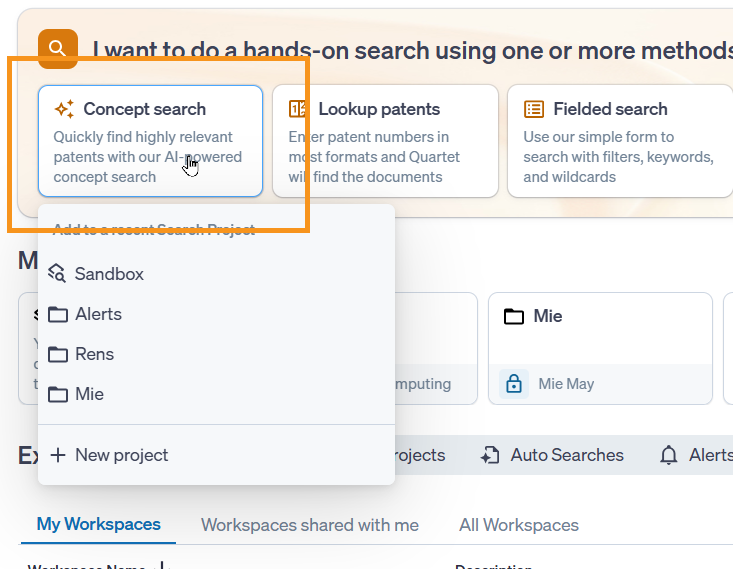
Or to access from within a Search Project, click on the Concept search box found in the navigation pane on the left:
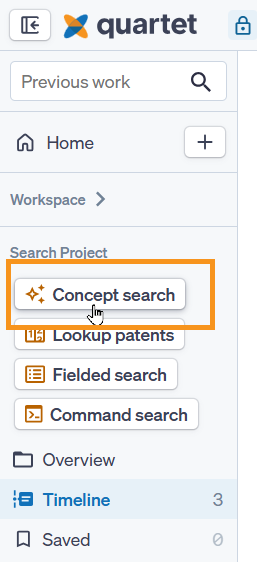
Hot Tip: The Concept search form can be opened when reviewing results, criteria can be added and searched in the background, so you can carry on reviewing records. The new search will be available in the Timeline of the relevant Search Project.
Both options will open a modal that can be moved around the screen for ease of use.
Within the Concept Search form, it is possible either search using text input or publication number.
Text Input
Using text input, simply enter text to describe what needs to be searched. The more descriptive the input text, the better the results tend to be. Example techniques to add context to the input description include:
- Re-describing descriptions in your own words
- Defining terms to aid the system in understanding the technological area
- Describing how things are used
- Providing a best mode of invention
Providing context around the search is very important to ensure the engine is looking in the correct technological area.
The minimum length for a text input is 50 characters.
Publication number Input
When using the publication number input, click on the Check number button next to the input field to display publication(s) matching the entered number. If more than one matching publication is found, a list will be displayed from which it is possible to select the publication of interest.
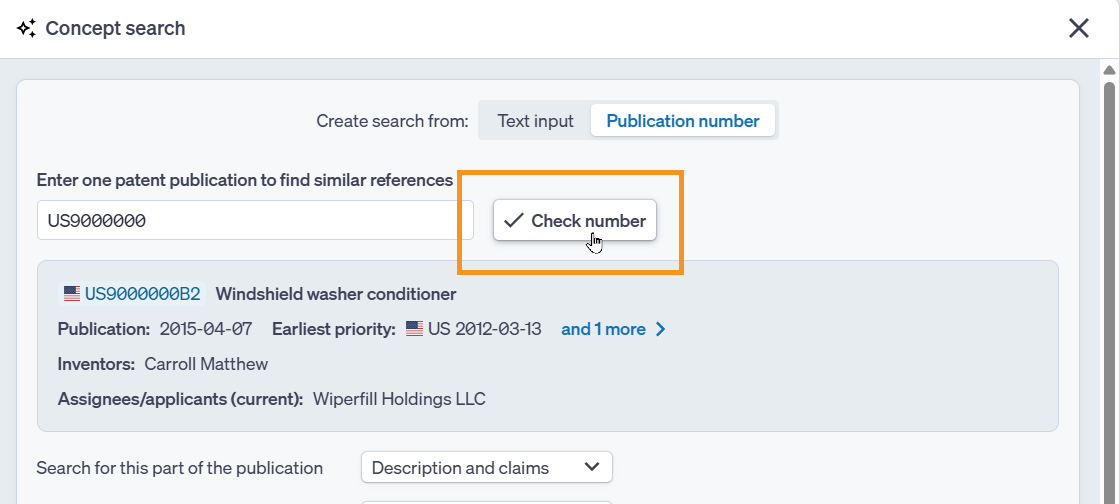
Limited bibliographic information will be displayed within the screen, mouse over the publication number to view further details as well as a link to the full PDF and an option to view full details of the publication within Quartet through the Preview publication button.
Select whether to perform the AI search on the description and claims, just the description, or just the claims of the selected publication and additionally where to search the details in publications retrieved in the search.
Concept Search Filter
Using the search filter is optional, however will help guide the Concept search in the desired direction or limit within specific data points like jurisdictions or classifications.
The search filter is useful to filter or limit the Concept search results with certain criteria. For example, if the search has date or jurisdiction restrictions or a specific classification area of interest, the filter can set the additional criteria prior to running the search.
An advantage of using the filter within the Concept search form versus executing a search first and then using Boolean commands to filter results in the Timeline, is that using the filter within the Concept search form will preserve the AI relevance score. Once the AI results have been combined with further Boolean commands in the Timeline, however, the AI scores are no longer preserved on the new search results.
Filters for a Concept search can be included using a fielded input search form similar to the Fielded search.
Please note that the filters can only be combined with the Concept search with the Boolean operators AND and NOT. Individual criteria within a group can be combined with Boolean operators AND and OR.
A field using the Timeline line numbers is available towards the bottom of the Fielded search section, this is useful to narrow down the Concept search on a search that has already been run and is available in the Timeline.
For help on wildcards please visit this article.
For help on proximity operators please visit this article.
Any filters used with an Concept search will be shown on the Timeline underneath the input for that search query.
At the bottom of the search form next to the Run search button a few options are available:
- Run in the background - this allows you to stay where you are in the system while the search is generated on the Timeline
- Via a dropdown box, select the maximum number of hits to retrieve between 25 and 500
- Reset will clear the search form
- Cancel will close the search form
The results will appear as a set of search query results within the Timeline, in order of relevance according to the AI model. The relevancy as determined by the system is shown in Results list view, to the left of the reference:
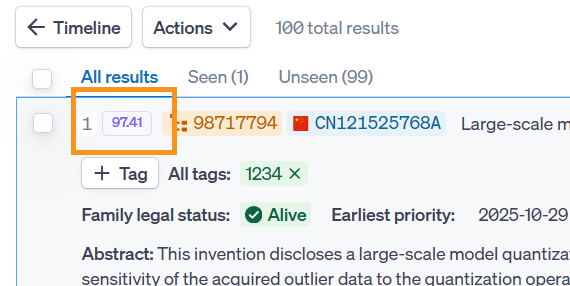
As well as within the record view along the top:

Additionally the Concept search can be focused to found or known publications and rerun for new results. For more information on that process please view this article.