
Search Project Features
Features can be mapped to text, both using an automatic analysis and manual mapping. Records can also be added to a Report, where a Feature Map can be included.
Adding Features
To add features click on the "+ Features" button within the Features section on the Search Project overview page.
There are three ways to generate the features:
- Using Ask Quartet to suggest features based on free text like an invention description or concept
- Using Ask Quartet to suggest features based on the Search Project description - if one has been included
- Enter the features manually
Select the relevant option and click Continue (unless features are entered manually), Ask Quartet will generate suggested features based on the text input/Search project description.
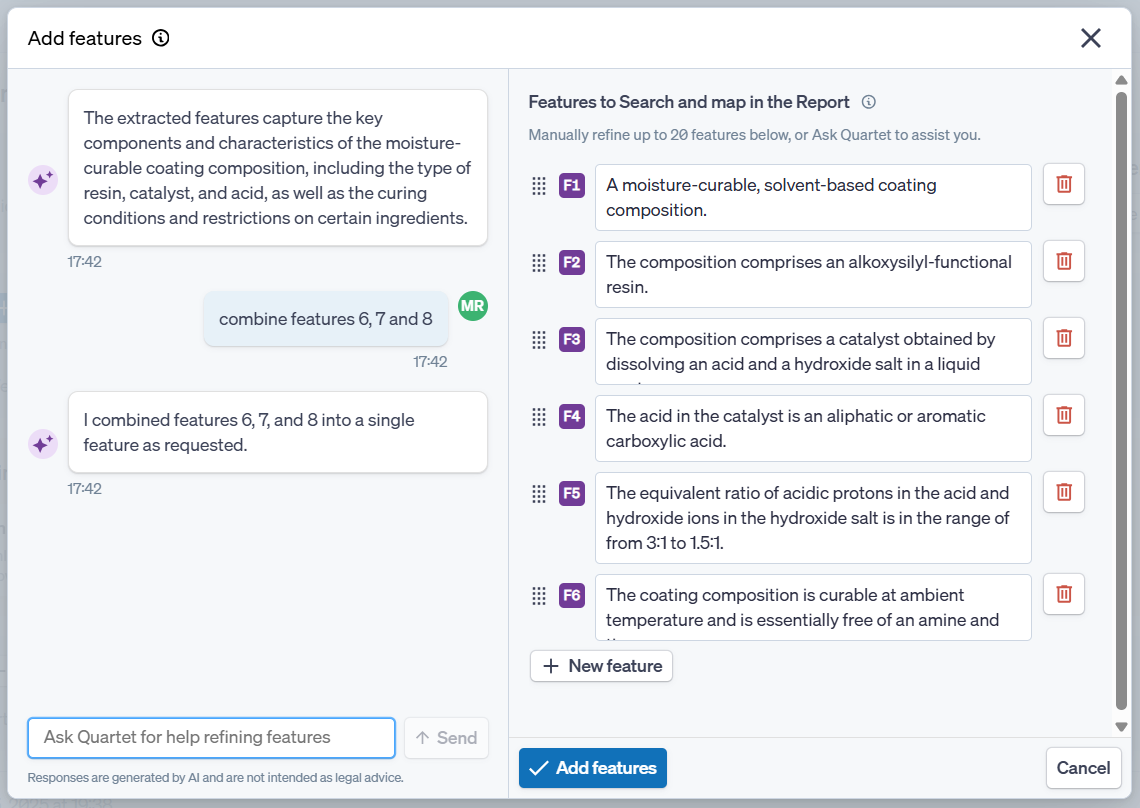
From the above screen, the features can be manually edited by clicking in the feature text box and typing, with a button at the bottom allowing for creation of additional features. When adding in or editing features, it helps to have terminology and words consistent across features, as well as having features being interlinked.
Alternatively use Ask Quartet to refine, remove or add features. In the case above, Ask Quartet was used to combine three features into one.
Ask Quartet can also be used to interrogate the features, e.g. asking for a set of classification codes that could be used in a Boolean search.
Click Add features to make them available within the Search Project.
Editing Features
Once features have been added, they will appear on the Search Project Overview page and can be edited from here, by clicking the Edit button.
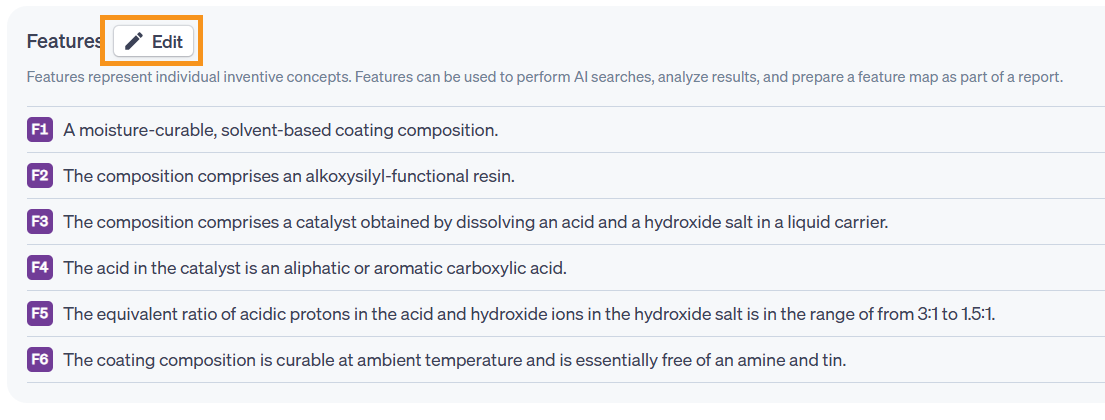
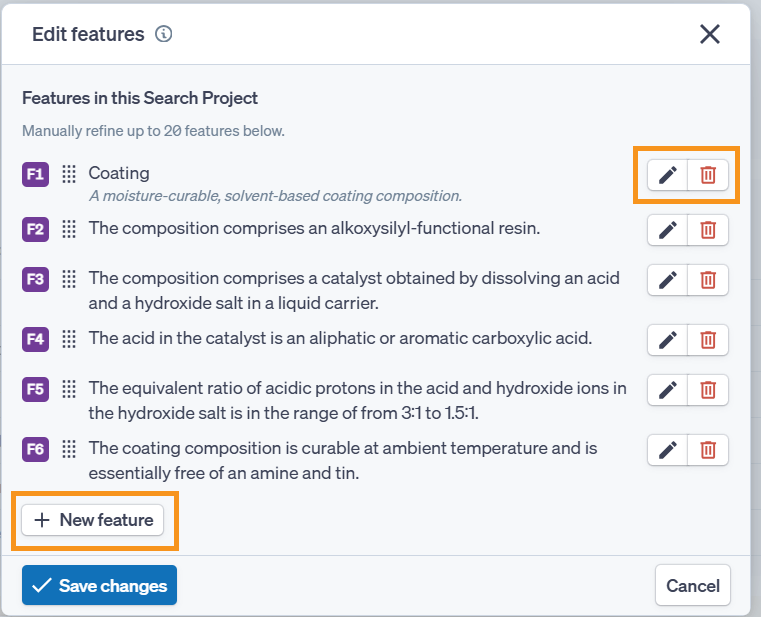
In the pop up it is possible to:
- Add additional features by clicking the "+ New feature" button
- Delete a feature by clicking the bin button next to the relevant feature
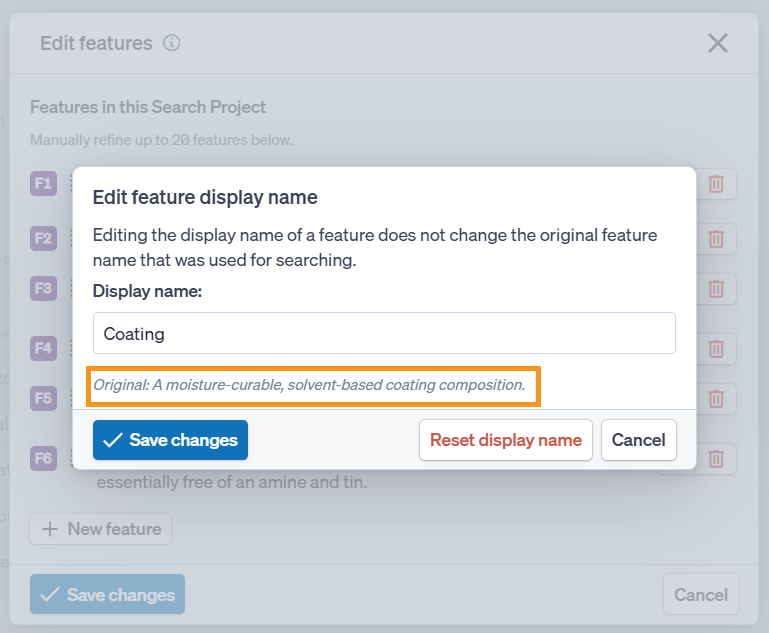
- Change the display name of a Feature by clicking on the pen icon, please note that this changes the display name only, the original feature name will be used for mapping
If the display name of a feature has been changed, the original feature name will be available on the edit feature pop up available via the pen icon, where it is also possible to reset the display name to the original.
Using Features
There are various ways to interact with the features, these can be mapped both manually and using AI to analyze the record.
Records can be added to Reports, including the mapped features and the ability to add the record to a Feature Map.
Adding Features to records
Within the Analysis tab on a record, found in the right pane in the standard views, a full overview of features in the Search Project is listed.
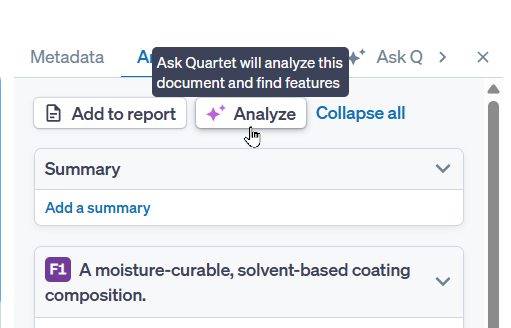
Click the Analyze button to use Ask Quartet to map features against the record:
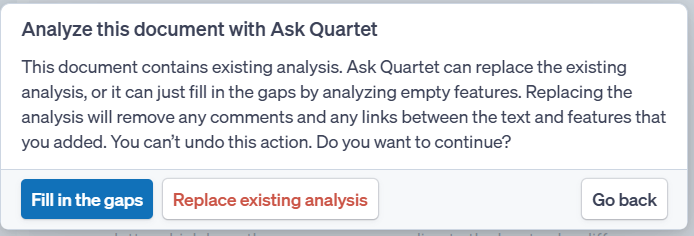
Please note that if features have already been mapped to the record, either manually or by using Ask Quartet, and option to fill in the gaps or replace existing analysis will appear:
Alternatively, map specific parts of the text to features manually by highlighting the relevant text, then select "Map text to features":
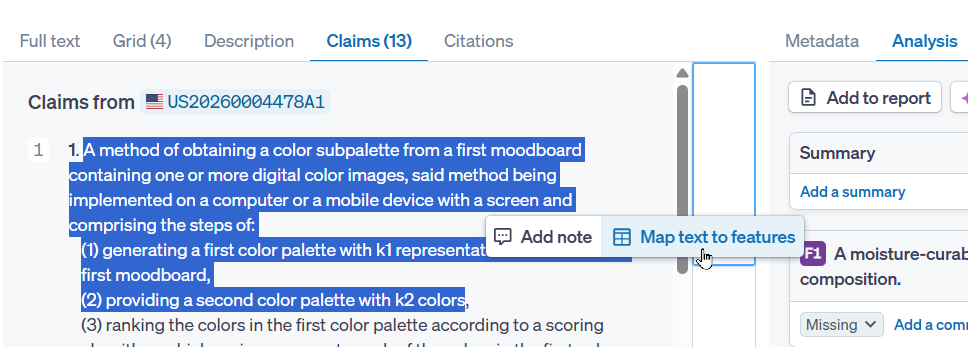
A list of the available features within the search project will appear, select the relevant feature(s).
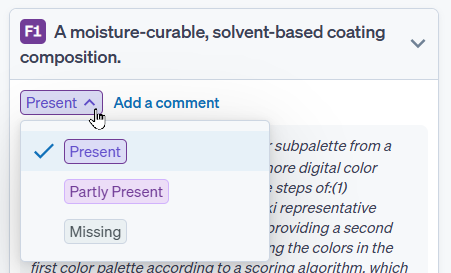
For each feature and citation there is an indicator available showing if the features is:
- Present
- Partly Present
- Missing
It is possible to change this within the Analysis tab by clicking on that status:
Remove Features from a record
To remove a mapped feature/citation, simply hover over the text within the record or in the Analysis tab, then click the bin icon:
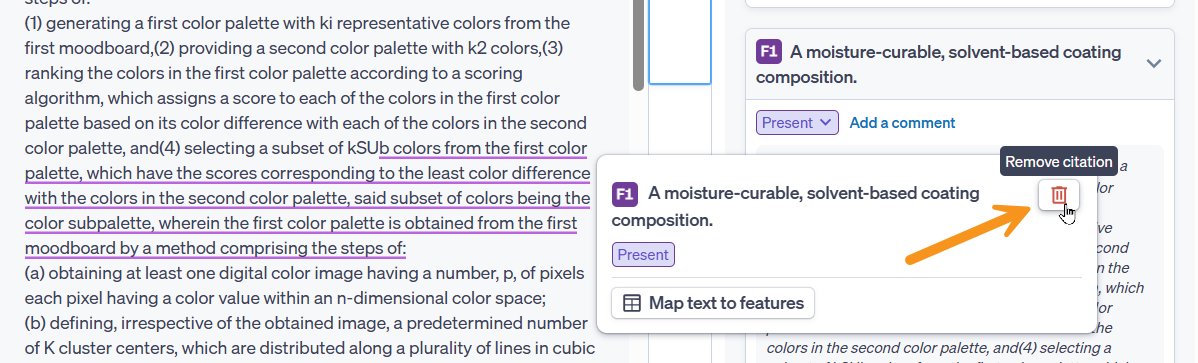
Features and Feature Map in Reports
Please visit this article for more information on Reports.
Add a record to a report either via the Report button in the top right hand corner of the record, or via the "Add to report" button within the analysis tab. Both will show the below pop up, where it is possible to select the relevant report and add the record to the feature map:
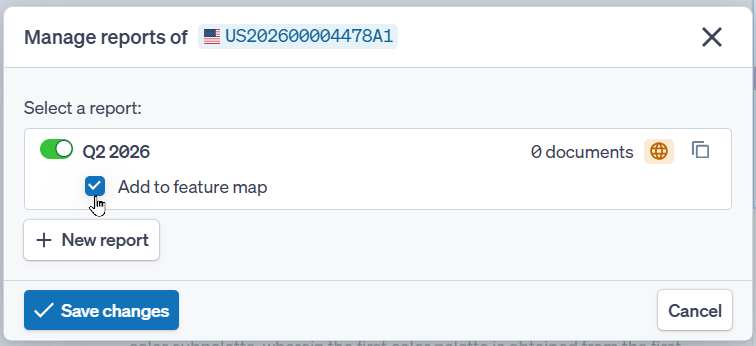
Remember to click "Save changes" to add the record to the report.
Within the report, two tabs will be available:
- The feature Map
- The Document List
Both will show a number in brackets, which indicates the number of records in the tab:
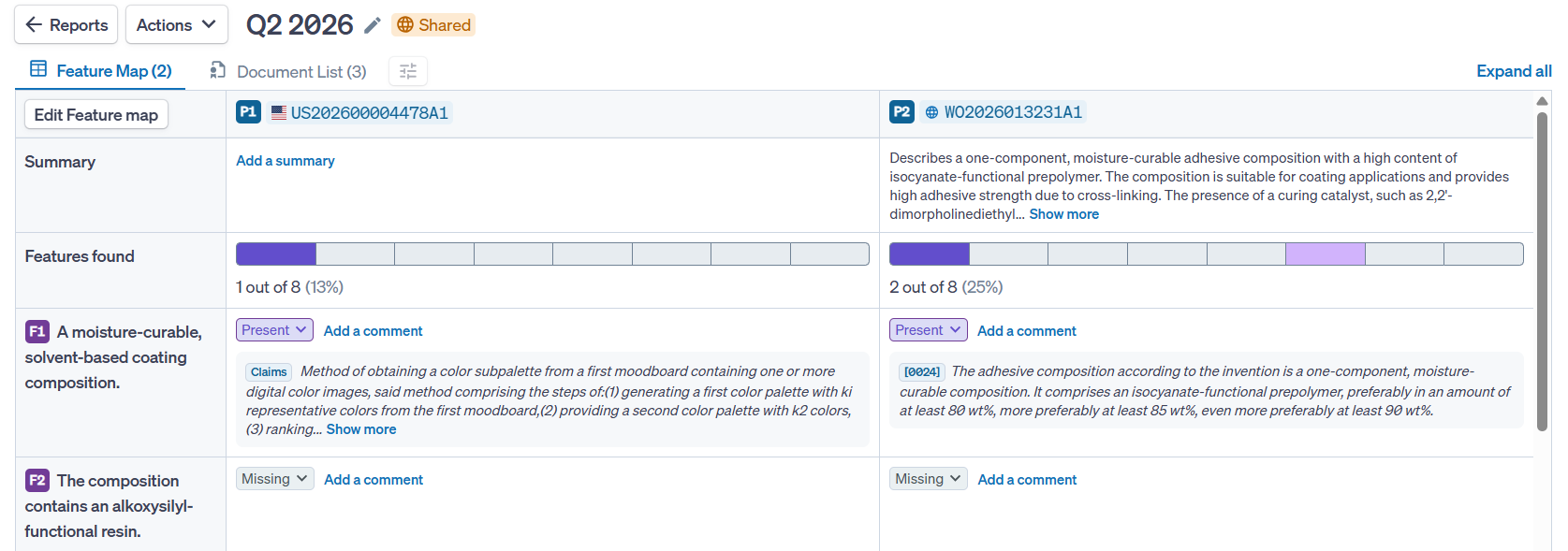
If a record in the report has not been included in the Feature Map, it can be done by accessing the Document List, then navigating to the relevant record, and via the Analysis tab click on "+ Feature map"